Welcome to Fix PC for Free. You can fix most of the Computer related problems on your own.

Is your PC running very slow?

There are many reasons for a slow PC. You can make your PC faster again on your own. You do not need to pay anyone. You can do it by yourself. Just need to know what to do and how to do it. You will find it on this website.

Is your PC infected with virus?

Is your computer acting weird, getting pop ups, Errors, booting very slow and websites getting redirected to a different pages. Then your computer is infected with virus. Don't worry, you can remove the virus from your computer and get your computer back to normal. All the thing you need to do is, just follow the instructions given in this website carefully.

Internet and Browsers are having trouble?

Some times your Internet connection or Internet Browsers (i.e Internet Explorer, Firefox and Google Chrome) might not work or having trouble in connecting to the Internet. You will also see some errors on browsers while trying to connect to the Internet and open websites. You can fix them by performing some simple troubleshooting steps and runnig free tools...

Errors with Programs and Applications?

Programs and applications errors will occur, if a program is not installed properly or the installed files of that program got currupt or some times updating the program/application might also cause the errors. Troubleshooting the progrmas and applications will depends on the errors and codes. You will find some troubleshooting steps and tools in this website ...

Showing posts with label Virus & Malware Removal. Show all posts

Friday, 11 April 2014

How to Backup your Registry..

In some cases, you might need to modify/delete few registry keys from your Registry. It is very dangerous to play with the registry keys or delete registry keys without knowing what you are doing and if you are not good at computers. Best thing is to take backup of Registry before you make any changes to it.

1. Press the Windows key + R at once 

2. Type "regedit" without the quotes >> Hit "Enter" key


3. Click on "File" option >> Click on "Export" option


4. Give a name to the file in the "File Name" field >> Choose where to save the backup file (Try to save on C:\)


5. That's it your Registry was backed up now. 

6. If you are having any issues after making changes to the registry, you can simply double click on the file that was backed up and merge the registry to go back to the original stage.

Sunday, 30 March 2014

How to perform System Restore on your PC..

You can fix many application problems or virus issues and also many computer problems,  by restoring your PC to an earlier date. Your data will not be affected. Only the applications and Windows Operating System files will be restored to the date you mentioned.

To perform a System Restore:

1. Click on Start >> Click on Accessories >> Click on System Tools >> Click on System Restore

OR

Press Windows key + R key at a time >> Type "rstrui.exe" without the quotes >> Press Enter key

2. Click on "Next" >> Select a date to which you want to restore the PC. 
(You can select the box "Show more restore points" to get more restore points in Vista and Windows 7)


3. Click "Finish"  >> Click on "Yes".


Tuesday, 11 March 2014

How to perform a "Clean boot" on your PC.

Follow the below steps to perform a "Clean Boot" on your PC.

1. For Windows Xp ---> Click on Start >> Click on Run >> Type "msconfig" without the quotes in the Run box >> Press Enter key

2. For Windows Vista,7 and 8 --> Click on Start >> Type "msconfig" without the quotes in the Search bar >> Press Enter key

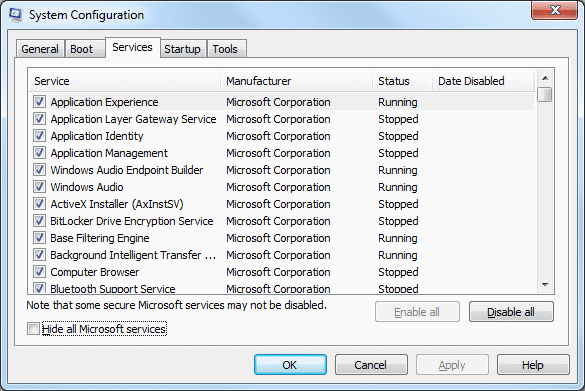
3. Go to "Services" tab

4. Select the option "Hide All Microsoft Services".


5. Now, uncheck all the boxes in the Services tab.

6. Then go to "Startup" tab


7. Click on "Disable All" button

8. Restart the PC. 

PC freezing and unable to access anything on Desktop screen..

You computer will freeze and you cannot access any  icons or applications on your screen. You will get a loading symbol and that's it. It is really irritating problem. It is because of a Rootkit.


1. Restart the Computer in to Safe mode or Safe mode with Networking
    
2. Download and run  TDSSKiller.exe 


3. Remove the detected threats.


4. Restart the computer to Normal mode.

5. Download and Run RougeKiller 32bit  
RougeKiller 64bit

6. Start the RougeKiller and wait for it to complete the PreScan.


7. Then click on "Scan" button

8. Once the Scan completed, click on "Delete" button.

9. It will remove the virus and replace the infected registry files.

Monday, 10 March 2014

How to uninstall programs that are not getting uninstalled..

When you are trying to uninstall a program, you might get windows installer pop up or any other error and the uninstallation will get cancelled. Don't worry, you can remove them with few uninstalling tools. here you can see a best tool to remove the programs from your computer permanently. It is called IObit uninstaller.

1. Download the IObit uninstaller from "TOOLS DOWNLOADS" section.

2. Run the IObit uninstaller.

3. Select the option "Batch Uninstall".


4.  You can select the multiple programs at a time and uninstall them.

5. Once the normal uninstalltion completed or failed, you will get "Powerful Scan" option.

6. Click on "Powerful Scan" button.
7. Then click on "Select All" option
8. Click on "Delete All"


Popups and Websites getting redirected while browsing..

Are you getting many pop ups while opening any website or checking emails? Websites getting redirected to a different websites?  Then your PC is infected with virus and malware. This happens mainly because of some fake softwares installed on your PC. You need remove those fake softwares, in order get rid of the pop ups while browsing.

1. Open Add/Remove programs window.

    For Windows Xp --> Click on Start >> Click on "Run" >> Type "appwiz.cpl" without the quotes in Run box and press the     Enter key.

    For Vista/7 or 8 --> Click on Start >> Type "appwiz.cpl" without the quotes in Search bar and press the Enter key.

2. Remove any programs that you do not know ( You can search with the program name in google) like Lyrics container, Less Tabs, Music Oasis, any program that starts with "Lyrics", Savings etc..

3. Download and run "HitmanPro" from "TOOLS DOWNLOADS" on this webiste. 

Clicke Here to know how to run HitmanPro

4. Removed any threats detected.

How to run HitmanPro and remove virus..

Here you will find the instructions on how to scan a computer with HitmanPro and remove threats for free..

1. First you need to find out your Operating System version. 
   Clicke here to know howto find your Operating System version.

2. Download HitmanPro depending on your Operating System whether it is 32bit or 64bit.
HitmanPro 32bit  HitmanPro 64bit

3. Run a scan with HitmanPro (You can run a free scan).


4. Once the scan completed, it gives you the results of detected threats.


5. Select the drop down arrow opposite to the detected threats and click on appropriate option. Like Delete, Quarantine, Ignore etc..

6. Then Click on Next.

7.  Click on the Option "Activate Free Licence" option


8. Enter any email address in the boxes that ask for email address and press Enter key.

9. Click on Next

10. Restart the PC.

How to scan and remove virus from your computer..

There are many viruses in the world which are infecting the computers in many ways. A good suggestion is always use an Antivirus program on your PC. There are some Antivirus programs that are available for free. Like, Avast, AVG etc.. You can install the free Antivirus or purchase any other Antivirus. Even though you  install the Antivirus, you will still get virus in to your PC's. Because, No Antivirus in the world can detect and remove all the viruses. Some times we might face critical virus issues, I will keep updating about the viruses and how to remove some particular viruses. If you suspect that your PC is infected with virus or unable to access the PC due to virus, follow the below steps to remove the virus from your PC.

1. Restart the PC in to Safe mode or Safe mode with Networking

 Click here to find the detailed instructions on how to restart the computer in to Safe mode.

2. Download and install the Malwarebytes. Run a Quick or Full scan.

3. Once the scan completed, You can select and remove the virus by clicking on Show the Results option.


How to Restart the PC in to Safe mode or Safe mode with Networking..

Follow the below steps to restart the PC in to Safemode or Safemode with Networking:
   
1. For Windows XP, Vista/7  

     a. Click on Start button >> Click on Shutdown >> Click on Restart 

     b. Keep pressing the F8 key, Immediately after PC getting started and before you get the Welcome screen.

     c. You will get a black screen with Safe mode option

     d. Select the Safe mode or Safe mode with Networking option by using the Arrow Keys and click on the Enter key on your Keyboard.

2.  For Windows 8 or 8.1:

   Follow the easy way to restart the PC in to safe mode.

    a. Press the Windows key + R key at a time

    b. Type "msconfig" without the quotes in the Run box and press Enter key

    c. Select the "Boot" tab and select the "Safe mode" box. ( You can also select "Network" option, after selecting the Safe mode box.)


    d. Click on OK button and then you will be asked to Restart the computer.

    e. Click on "Restart".