Welcome to Fix PC for Free. You can fix most of the Computer related problems on your own.

Is your PC running very slow?

There are many reasons for a slow PC. You can make your PC faster again on your own. You do not need to pay anyone. You can do it by yourself. Just need to know what to do and how to do it. You will find it on this website.

Is your PC infected with virus?

Is your computer acting weird, getting pop ups, Errors, booting very slow and websites getting redirected to a different pages. Then your computer is infected with virus. Don't worry, you can remove the virus from your computer and get your computer back to normal. All the thing you need to do is, just follow the instructions given in this website carefully.

Internet and Browsers are having trouble?

Some times your Internet connection or Internet Browsers (i.e Internet Explorer, Firefox and Google Chrome) might not work or having trouble in connecting to the Internet. You will also see some errors on browsers while trying to connect to the Internet and open websites. You can fix them by performing some simple troubleshooting steps and runnig free tools...

Errors with Programs and Applications?

Programs and applications errors will occur, if a program is not installed properly or the installed files of that program got currupt or some times updating the program/application might also cause the errors. Troubleshooting the progrmas and applications will depends on the errors and codes. You will find some troubleshooting steps and tools in this website ...

Showing posts with label Slow PC. Show all posts

Friday, 25 April 2014

How to speed up the shutdown process in Windows

Your PC might take long time to shutdown and start again. We can speed up the shutdown process by making some changes to the computer settings and registry.


1. First thing is take backup of Registry before performing any changes to the registry.

2. Optimizing Startup Items:
a. Press Windows key + R at a time >> Type "msconfig" without the quotes in the Run box >> Press Enter.

b. Click on the "Startup" tab on the "System Configuration Utility" window that prompts >> Uncheck the items that you are not using. (You can disable all the startup items. It will not affect your computer)

c. Click on Apply and click on Ok


Making changes to the Registry
3. Press Windows key + R at a time >> Type "regedit" (without the quotes) in the Run box >> Press Enter key
4. Go to HKEY_LOCAL_MACHINE\SYSTEM\CurrentControlSet\Control\
5. In the right side window, you will see "WaitToKillServiceTimeout" entry >> Double click on "WaitToKillServiceTimeout" >> Change the value from 12000 to 2000


6. Then go to HKEY_CURRENT_USER\Control Panel\Desktop
7. In the right side window, you will see "WaitToKillServiceTimeout" entry >> Double click on "WaitToKillServiceTimeout" >> Change the value to 2000

8. Then go to HKEY_LOCAL_MACHINE\SYSTEM\CurrentControlSet\Control\Session Manager\Memory Management >> Double click on "ClearPageFileOnShutdown" entry >> Change the value to 1

9. You can also use a Run command to shutdown or restart the computer.

10. To Shutdown the PC >> Press the Windows Key +R at a time >> Type "shutdown -s -t 01" without the quotes >> Press Enter key

11. To Restart the PC >> Press the Windows Key + R >> Type "shutdown -r -t 01" without the quotes >> Press Enter key


Sunday, 30 March 2014

How to perform System Restore on your PC..

You can fix many application problems or virus issues and also many computer problems,  by restoring your PC to an earlier date. Your data will not be affected. Only the applications and Windows Operating System files will be restored to the date you mentioned.

To perform a System Restore:

1. Click on Start >> Click on Accessories >> Click on System Tools >> Click on System Restore

OR

Press Windows key + R key at a time >> Type "rstrui.exe" without the quotes >> Press Enter key

2. Click on "Next" >> Select a date to which you want to restore the PC. 
(You can select the box "Show more restore points" to get more restore points in Vista and Windows 7)


3. Click "Finish"  >> Click on "Yes".


Tuesday, 11 March 2014

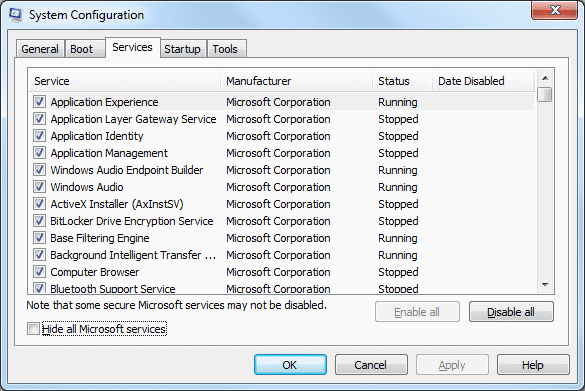
How to perform a "Clean boot" on your PC.

Follow the below steps to perform a "Clean Boot" on your PC.

1. For Windows Xp ---> Click on Start >> Click on Run >> Type "msconfig" without the quotes in the Run box >> Press Enter key

2. For Windows Vista,7 and 8 --> Click on Start >> Type "msconfig" without the quotes in the Search bar >> Press Enter key

3. Go to "Services" tab

4. Select the option "Hide All Microsoft Services".


5. Now, uncheck all the boxes in the Services tab.

6. Then go to "Startup" tab


7. Click on "Disable All" button

8. Restart the PC. 

PC freezing and unable to access anything on Desktop screen..

You computer will freeze and you cannot access any  icons or applications on your screen. You will get a loading symbol and that's it. It is really irritating problem. It is because of a Rootkit.


1. Restart the Computer in to Safe mode or Safe mode with Networking
    
2. Download and run  TDSSKiller.exe 


3. Remove the detected threats.


4. Restart the computer to Normal mode.

5. Download and Run RougeKiller 32bit  
RougeKiller 64bit

6. Start the RougeKiller and wait for it to complete the PreScan.


7. Then click on "Scan" button

8. Once the Scan completed, click on "Delete" button.

9. It will remove the virus and replace the infected registry files.

Friday, 7 March 2014

How to Fix Slow PC issues..


Slow PC issues
--------------------------

Follow the below instructions to speed up the PC:

Increasing virtual memory:

For Windows XP:

1. Click on Start >> Click on Run >> Type "sysdm.cpl" without the quotes and hit enter

2. Click on "Advanced" tab on the System Properties window that prompts >> Click on Settings button under "Performance."

3. On the Visual Effects tab on "Performance Options window" select the option "Adjust for best performance" >> Then select the three  options "use visual styles on windows and buttons", Use drop shadows for icon lables on the desktop" and "Smooth edges of screen fonts".

4. Then go to "Advanced" tab on the same window >> Click on "Change" button under Virtual Memory >> Select the option "System Managed size".
5. Click on "Set" button >> Click on Ok on all the windows.